AI Video Help: Uploads, Task Status, Credits and Downloads
Find the right next step for photo upload errors, a processing or missing video, failed generation, returned credits, downloads and sound.
Last updated: 2026-10-19
Start with the last step that worked
For the I Found You in the Crowd video, first check whether the problem happened before submission, while the task was processing, or after a file became available. A photo upload error is different from a failed video task, and a failed download does not by itself mean generation failed.
If a payment or request is uncertain, check its status before paying or creating again. Use the account that submitted the task throughout these checks. For the normal phone workflow, see how to create the video.
The screenshot shows a simulated task to explain the interface.
The photo will not upload
If no thumbnail and filename appear, work through these checks in order:
- Check sign-in. If the upload area asks you to sign in, complete sign-in first. If it says your session could not be checked, refresh and wait for that check to finish.
- Check the file. Choose a JPEG, PNG or WebP image up to 10 MB. A different extension, a video or a link to an album is not a supported photo input. Export a supported image copy if necessary.
- Check the shape. Avoid very long screenshots or unusually narrow or wide images. Choose a normally proportioned portrait with one clearly visible person. Use the photo preparation checklist to decide whether to choose another photo.
- Check upload progress. Wait while Uploading photo… is shown. If you chose the wrong file, use Cancel upload, then choose again. Do not start several uploads at once.
- Check the connection. If the page reports an upload failure or timeout, restore your connection and use the upload's retry option when offered. Check the slot afterward: the thumbnail and filename should appear before you continue.
If the page says a photo could not be verified, upload it again before creating the video. If the saved photos have expired, choose and upload both originals again. Keep those originals on your device.
The page cannot recognize a subject
A no-subject message means the current check did not recognize a usable subject in that image. Choose another clear photo with one person, enough visible body and clothing, good light and little obstruction. Do not keep retrying the same unclear image expecting the message to disappear.
Subject recognition checks for a usable subject; it does not verify identity or permission to use a photo. Only use yourself or consenting adults and images you have permission to use; minors and public figures are excluded by the service rules.
A later content-filter message is a separate generation issue. Choose an image that meets the service rules; changing the file type is not a way to bypass those rules.
The create button or photo controls are unavailable
Wait for sign-in checks and uploads to finish. Both role slots need an uploaded photo. The page can also lock changes while it submits a request, processes a task, checks a saved task or confirms credits after payment. Check the status message before trying again.
If you cannot confirm whether a submission went through, use Retry on that request or open My videos. Keep the same request intact until its status is clear; do not change the photos or repeatedly tap Create video to resolve uncertainty. The creation guide explains the role labels and how to change photos before sending.
Queued, processing, ready or failed: what each means
- Queued: the task has been accepted and is waiting. Keep that task rather than starting another one.
- Processing: work is in progress. Open My videos later to check the same task.
- Ready: generation has finished. Open the task and check that a playable file and download control are available.
- Failed: generation did not complete successfully. Read the task's message before deciding what to do next.
- Canceled or unavailable: this is not a ready video. Check the task detail and contact support if the next step or credit balance is unclear.
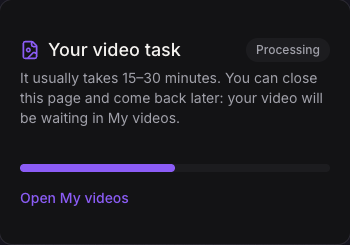
If status refresh fails, a connection or status-check error does not establish that the video task failed. Use the task's retry control or return to My videos. If it remains unresolved, keep the task link or ID for support rather than paying again.
I closed the page or cannot find my video
Open My videos and sign in with the same account used to submit the request. Open the matching card and check its status and creation date. If older items are not visible, use the list's load-more control when offered.
A submitted task belongs to your account, so checking it from another device requires that same account. If the list is empty, check which account you used; creating another account will not move the task there. If the list fails to load, use Try again rather than assuming that your tasks were deleted.
Uploaded photos that were never successfully submitted are a draft, not a video task. If the draft is missing or expired, choose the originals again. If the previous submission itself is uncertain, check My videos and the creator's status first.
Generation failed: what happens to the credit?
When a generation fails, the video credit used for that task is returned automatically so you can use it again. The creator may show that the credit is being returned or has been returned. Check your credit balance; an in-progress return can require another status check. This credit return does not reverse the card payment; cash refunds are a separate process. If a failed task's credit remains missing, contact support with the task details rather than making another purchase to investigate it.
A result you dislike is different from a task ending in failure. If the person's appearance, clothing or movement differs from your expectation, review the selected photos and the finished video before spending another credit. AI details can vary. Correcting the role order after submission requires another generation and a video credit.
If the task reports a storage problem or an unavailable result, keep the task details and contact support.
The file will not download or play
- Open the task from My videos and confirm that a file is available. If the task is still queued or processing, wait; there is no finished file to download yet.
- Tap Download video on the task detail page. Check the browser's download list and your device's files to confirm it finished saving. Make sure the connection is working and the device has storage space.
- If the download control does not save a file, try the task's Open in a new tab link. Depending on your browser, the video may open for playback; use the saving options that browser provides, then check for a saved copy.
- If a downloaded file will not play, compare it with playback on the task page. Try a current browser or another compatible video player. A partial download or player problem is different from a failed generation.
- If the task shows an expiry notice or no file, check that message. Contact support if an expected result is unavailable.
The video has no audible sound
Start playback and check the player's mute and volume controls, the device's media volume and any headphones or other audio output. Compare the task-page player with the downloaded file in another player.
If sound works in one player, investigate the silent player's settings. If the video is silent everywhere, or the picture or sound appears incomplete, contact support with the task link and the checks you tried. Do not regenerate or buy again solely to test the sound.
Contact support with useful details
Use the contact page or email support@tormentadearenaia.com. Include your account email, the task link or ID if available, when the problem occurred, the exact on-screen message, your device and browser, and which steps above you tried. For a payment issue, add the order or payment ID and check Billing.
Do not send passwords, sign-in codes or full card numbers. A screenshot of the error and status is usually more useful than uploading the portraits again.