How to Choose Two Photos for the I Found You in the Crowd Trend
Choose two clear photos for the balcony and dancer roles: a practical checklist, illustrated examples, preparation steps, and what to do if you need another photo.
Last updated: 2026-10-19
What photos do you need?
For the I Found You in the Crowd AI video, choose two separate photos with one person in each. A clear full-body or half-body photo is a useful starting point: the person and their clothing should be easy to see. The first photo supplies the balcony watcher; the second supplies the dancer.
You do not need to photograph anyone on a balcony or in a nightclub. Choose the reference photos for the people first; the creator supplies the scene. There is no need to combine both people into one image.
A checklist before you upload
- One person per image. Avoid group photos or images with another person partly in frame.
- A clear view of the person. Choose a photo in focus, with enough light to distinguish their appearance without a heavy filter or an object covering them.
- Enough of the person visible. Prefer a full-body or half-body view over an extremely tight portrait. Keep the clothing you want to use as a reference visible.
- A readable subject. A simple background helps you judge the photo. Avoid images where the person is tiny, deeply shadowed, or lost among objects.
- A supported file. The upload control accepts JPEG, PNG, or WebP, up to 10 MB per photo. Convert other formats to a supported format before choosing the file.
- Permission for this use. Use photos of yourself or consenting adults, with the necessary rights to the images. The service excludes minors and public figures. A file passing the upload checks does not establish permission to use it.
These are selection guidelines, not a promise that a particular photo will produce an exact likeness or preserve every detail. Read the photo-use terms before uploading.
Illustrated examples: useful starting points and photos to avoid
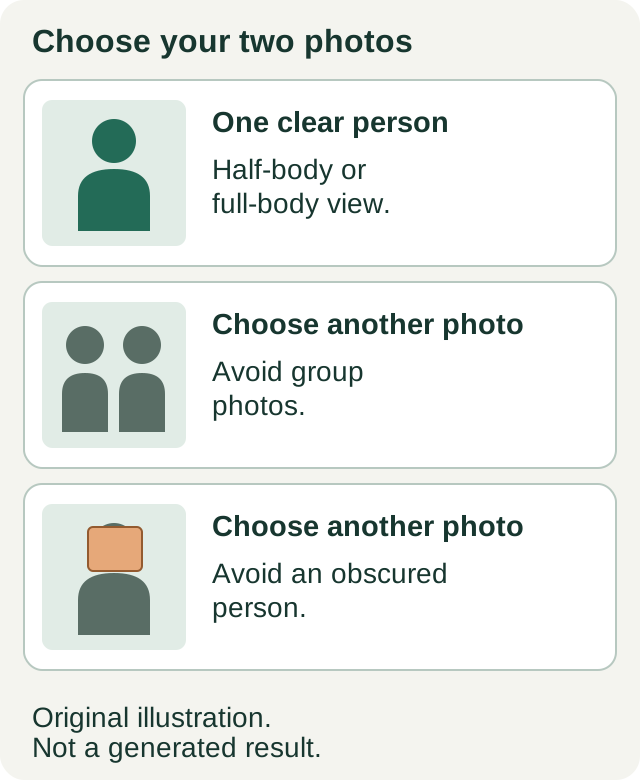
These are original illustrations, not generated video results. The first drawing represents a clear single-person reference. The other drawings show two reasons to choose a different photo: multiple people and an obscured person. They illustrate input choices only; they are not real uploads or before-and-after results.
For example, if you have one well-lit half-body photo and one dark group selfie, keep the half-body photo as a candidate and find a separate, clearer photo for the other person. Do not upload the group selfie just to fill the second slot.
Full-body or half-body: keep useful detail in view
Both full-body and half-body photos fit the site's photo guidance. Choose the one in which the person is clearer, rather than assuming full-body is always better. A distant full-body shot may show less useful detail than a sharp half-body portrait.
- Full-body: keep the head, body, and clothing visible, with a little space around the person. Avoid a composition where most of the image is scenery and the person is tiny.
- Half-body: keep the head and upper body clearly visible, with enough clothing in view to understand the reference. Avoid cutting through the head or leaving only an extreme close-up.
- Two different compositions: the photos do not have to use identical framing. Review each one on its own; two poorly framed images do not become better inputs just because they match.
For instance, choose a clear half-body photo over a distant full-body photo of the same person. If you want clothing details to be visible, check the original at a comfortable size before deciding. The generated video may interpret those details differently.
Crop and frame before uploading
There is no crop editor in the creator. If you need to adjust the composition, use your device's photo editor before selecting the file, and save a separate copy.
- Start with the original rather than a screenshot of a screenshot.
- Trim unnecessary background only while keeping the person and useful clothing detail visible.
- Check the saved copy again. If cropping a group photo leaves another person in view, or the intended person becomes too small or incomplete, find another photo.
- Keep the original so you can undo your own crop without losing detail permanently.
Do not stretch an image to make it fit a particular rectangle. Cropping changes what is visible; stretching changes the person's proportions. The 9:16 format describes the requested output video, not a requirement that you manually crop both inputs to 9:16.
What happens to very wide or narrow photos?
The current input preparation uses a width-to-height range of 0.4 to 2.5. When a supported photo falls outside that range and the browser can process it, the site automatically adds neutral gray borders to bring it inside the range. It does not crop away parts of the person or stretch them to do this.
Examples of the proportions, rather than required pixel sizes:
- A 1000 × 2000 image has a ratio of 0.5 and is inside the range.
- A 300 × 1200 image has a ratio of 0.25; the site adds space at the sides.
- A 2400 × 800 image has a ratio of 3; the site adds space above and below.
These are illustrations of framing, not tested video results. Automatic padding makes the proportions suitable for submission; it does not recover missing image detail or guarantee a better video. The small upload preview can still show your selected original rather than the prepared copy.
The browser may resize, compress, and convert the upload copy to JPEG during preparation. You do not need to reach a particular small file size or pixel dimension yourself. If preparation cannot complete and the site reports a proportion problem, export a supported copy with less extreme framing or choose another image, then follow the upload help.
Dark or blurry photo: adjust it or choose another?
First compare the original with any alternative photos. If you cannot distinguish the person's appearance or clothing in the original, uploading it repeatedly will not add that missing information.
- Slightly dark but clear: you can adjust exposure in your device's editor and inspect a saved copy. Keep it only if the person is easier to see without losing visible detail.
- Very dark: a brighter setting cannot reveal detail that was never recorded. Choose another photo or take a new one in even light.
- Blurred by movement or missed focus: choose a sharper original or take a new photo with a steady camera. Enlarging the file or exporting it at a higher resolution does not restore focus.
- Heavy filters or processing: prefer a clearer, less processed original. Do not assume a sharpening or beauty filter will improve the generated result.
The creator is not a photo restoration tool. These preparation choices make your reference easier to assess; they do not promise to correct the AI output.
File format and size: the actual upload limits
Use JPEG, PNG, or WebP, up to 10 MB per photo. That limit applies to the file you select, before the creator's automatic preparation. A file over 10 MB must be exported or compressed on your device first; the site's later compression is not a way around the selection limit.
If you have HEIC, GIF, or another unsupported format, export an actual JPEG, PNG, or WebP copy in a photo editor. Changing only the filename extension does not convert the image. Open the exported file, check its appearance, and check its saved size before uploading.
There is no need to convert a supported file solely because another supported format is available. Keep enough detail to assess the person and their clothing; a smaller file is not automatically a better reference.
Prepare the pair in order
- Choose who will watch from the balcony and who will dance. Keep one candidate photo for each role.
- Review the original images using the checklist, then crop or export separate copies on your device only if needed.
- Check the saved type and size: JPEG, PNG, or WebP, up to 10 MB each.
- Open the creator, sign in when prompted, and upload one photo to each labeled slot. Wait for each upload to finish before continuing.
- Compare both previews and filenames with the role labels before submitting. Follow the role and upload steps if you need to change your selection.
What if you do not have two suitable photos?
Do not fill the gap with a stranger's image or a public figure. Ask the other adult for a photo and permission to use it for this AI video, or take a new photo with their agreement. Use even light, a steady camera, one person in frame, and a full-body or half-body composition. You do not need special scenery.
If permission is missing, wait before uploading. If the only available file is a tiny screenshot, heavily filtered portrait, or group photo that cannot be cropped cleanly, getting a new photo is a more useful next step than repeatedly submitting the same reference.
When both photos are ready, follow the complete creation steps or return to the creator. For upload or processing messages, use video help. The AI result still needs your review before you share it.